How to Track AI Traffic Google Analytics 4 (Step-by-Step)
Author: Varun Kumar – Results-Driven SEO Strategist
AI platforms such as ChatGPT, Google Gemini, Perplexity, and Microsoft Copilot are changing how users access websites. People increasingly use these platforms to ask questions, compare services, and get recommendations before visiting a website.
For SEO professionals and website owners, tracking traffic from AI platforms is important for understanding how AI search contributes to website visits, user engagement, and conversions.
Google Analytics 4 (GA4) can help identify visitors arriving from AI platforms through referral sources, traffic acquisition reports, and custom channel groupings, helping businesses measure AI-driven performance and improve their SEO Services strategy.
This guide explains how to track AI traffic in Google Analytics 4, identify individual AI platforms, create custom reports, and measure their performance step by step.
What Is AI Traffic in Google Analytics 4?
AI traffic refers to website visitors who arrive through links shared by AI-powered platforms, including:
- ChatGPT
- Google Gemini
- Perplexity AI
- Microsoft Copilot
- Claude
- Google AI Mode (when referral information is available)
For example, someone asks ChatGPT to recommend an SEO agency. They receive a recommendation with a website link and click it to visit that website.
If the referral information is passed to GA4, the visit may appear as referral traffic.
Important: Not every AI-assisted visit is identifiable. Some users copy and paste URLs, switch browsers, or visit websites directly after receiving AI recommendations. These visits may appear as Direct traffic rather than AI referral traffic.
Step 1: Open Your Google Analytics 4 Property
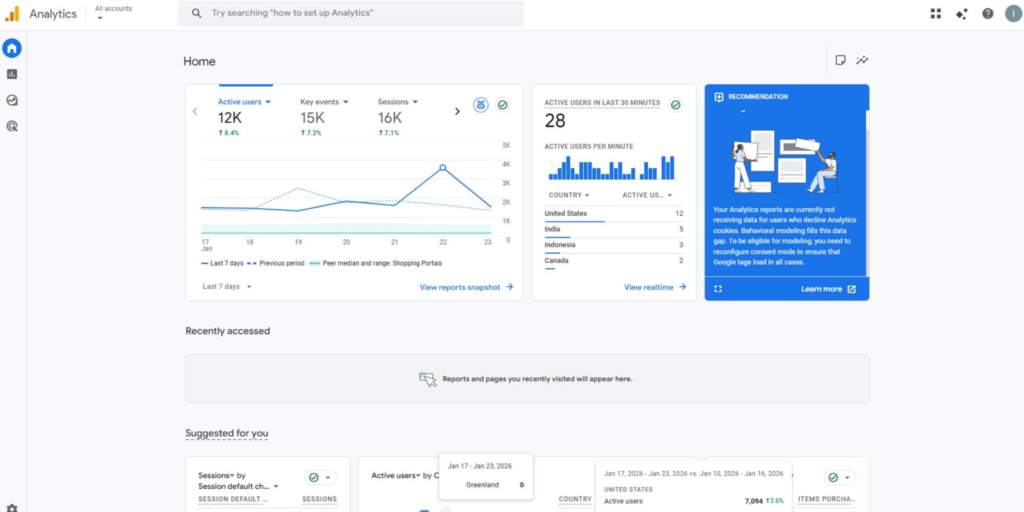
- Open Google Analytics.
- Sign in using your Google account.
- Select the GA4 property connected to your website.
- Check that the correct website property is selected.
- Open the Reports section from the left-hand navigation.
Make sure your GA4 tracking tag is properly installed and collecting website data before proceeding.
Step 2: Open the Traffic Acquisition Report
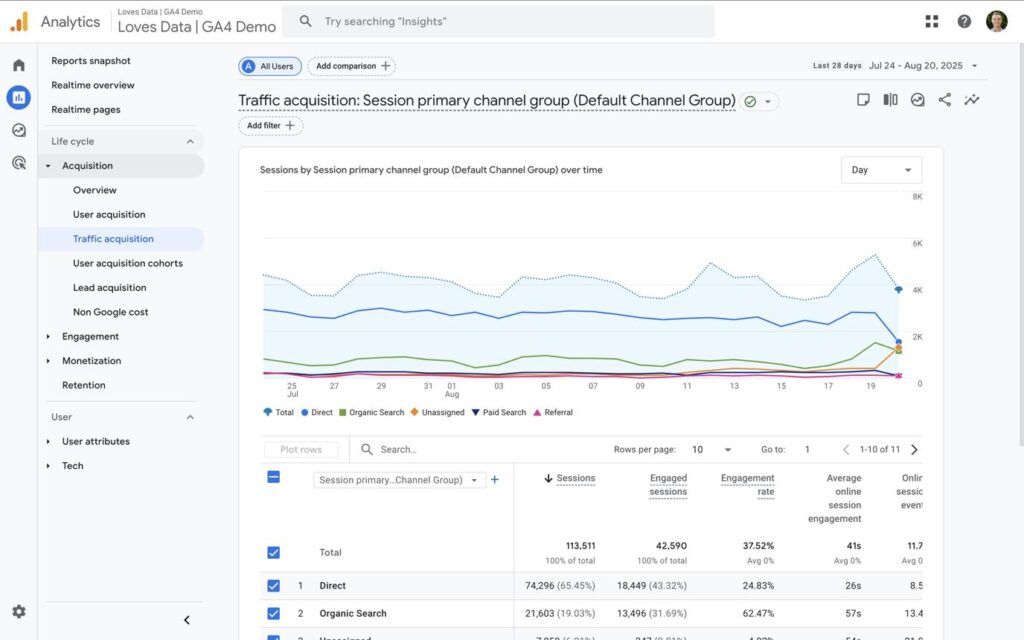
Follow these steps:
- Click Reports in the left navigation.
- Open Acquisition.
- Select Traffic acquisition.
- Check the primary dimension above the report table.
- Select Session default channel group if it is not already selected.
You will see different traffic channels, such as:
- Organic Search
- Direct
- Referral
- Organic Social
- Paid Search
- AI Assistant
Expected result
If your website receives identifiable visits from supported AI platforms, GA4 can display them under the AI Assistant channel.
Google introduced this dedicated default channel in May 2026. It automatically categorizes recognized AI assistant referrals, including sources such as ChatGPT, Gemini, DeepSeek, Copilot, and Grok.
Step 3: Identify Traffic From Individual AI Platforms
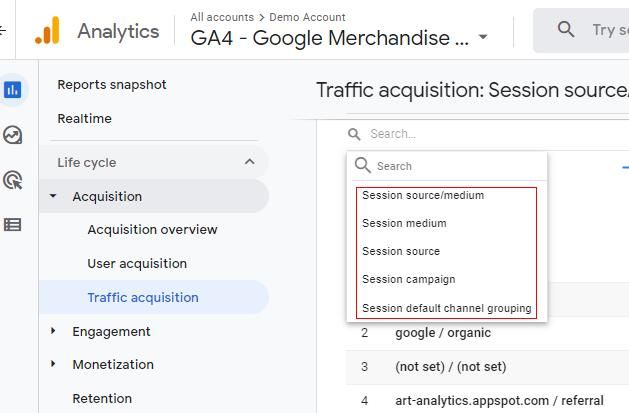
Now that you have opened the Traffic Acquisition report, the next step is to identify which AI platforms are sending visitors to your website.
Follow these steps:
- Open the Traffic acquisition report.
- Click the primary dimension dropdown.
- Select Session source / medium.
- Use the table search field to check individual AI platforms.
- Review the sessions associated with each source.
Here are some common AI referral sources to monitor:
| AI Platform | Possible GA4 Source |
|---|---|
| ChatGPT | chatgpt.com |
| Perplexity | perplexity.ai |
| Google Gemini | gemini.google.com |
| Microsoft Copilot | copilot.microsoft.com |
| Claude | claude.ai |
| DeepSeek | deepseek.com |
The exact source value may vary depending on the platform, browser, and referral information passed to GA4.
Example: If you see chatgpt.com / referral or a session attributed to the AI Assistant channel, it indicates that GA4 has attributed that visit to ChatGPT.
Note that the AI Assistant channel and the individual source values are different reporting dimensions. Use the source/medium dimension to examine individual platforms.
Step 4: Create a Custom Channel Group for AI Traffic
Sometimes, AI referral visits may appear under the Referral or Unassigned channels instead of a dedicated AI category.
To organize additional AI sources, you can create a custom channel group in GA4.
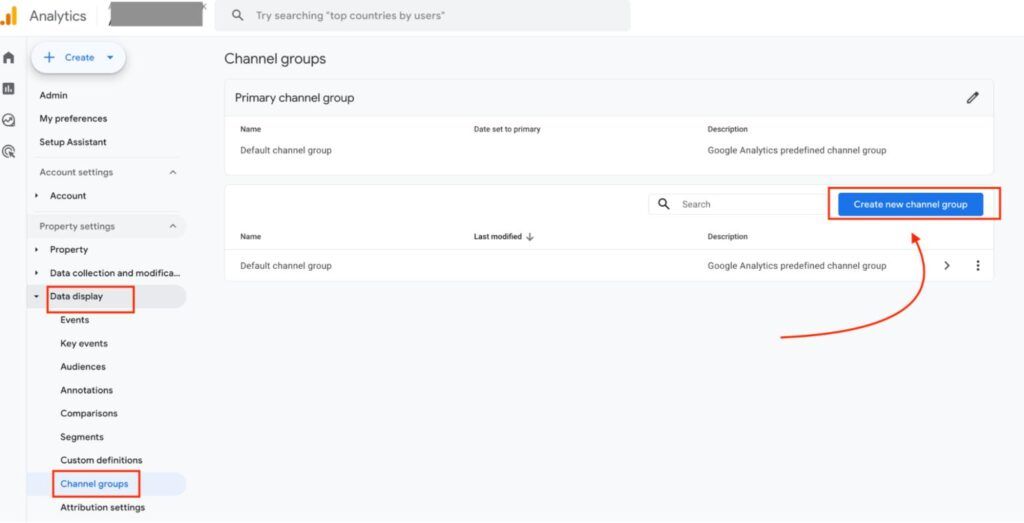
Follow these steps:
- Open GA4 Admin
- Go to your GA4 property.
- Click the Admin icon.
- Open Data display.
- Select Channel groups.
- Create a New Channel Group
- Click Create new channel group.
- Give your group a name, such as AI Traffic Tracking.
- Start with a copy of the default channel group.
- Add a New Channel
Click Add new channel and enter:
- Channel name: AI Assistants
- Dimension: Source
- Match type: Matches regex
- Add an AI Traffic Regex
Use the following regular expression to identify common AI platforms:
^(.*\.)?(chatgpt\.com|chat\.openai\.com|openai|perplexity\.ai|gemini\.google\.com|bard\.google\.com|copilot\.microsoft\.com|copilot\.com|claude\.ai|deepseek\.com|grok\.com|meta\.ai)$
This pattern includes common source domains and selected legacy or domain-less source values. Adjust it according to the sources appearing in your GA4 reports.
- Reorder the Channel
Move your newly created AI Assistants channel above the Referral channel and any broader channel rules that could capture the same visits.
- Save Your Custom Channel Group
Click Save group to apply the configuration.
Expected result
Your custom channel group can categorize matching AI referrals separately, making it easier to compare AI traffic with other acquisition channels.
Google also provides an official example of creating an AI Assistants custom channel using regex conditions.
Step 5: Create an AI Traffic Report Using GA4 Explorations
The standard Traffic Acquisition report provides an overview. However, you may need a more detailed report to understand which AI platforms are sending visitors and which website pages they are visiting.
GA4 Explorations can help you build this report.
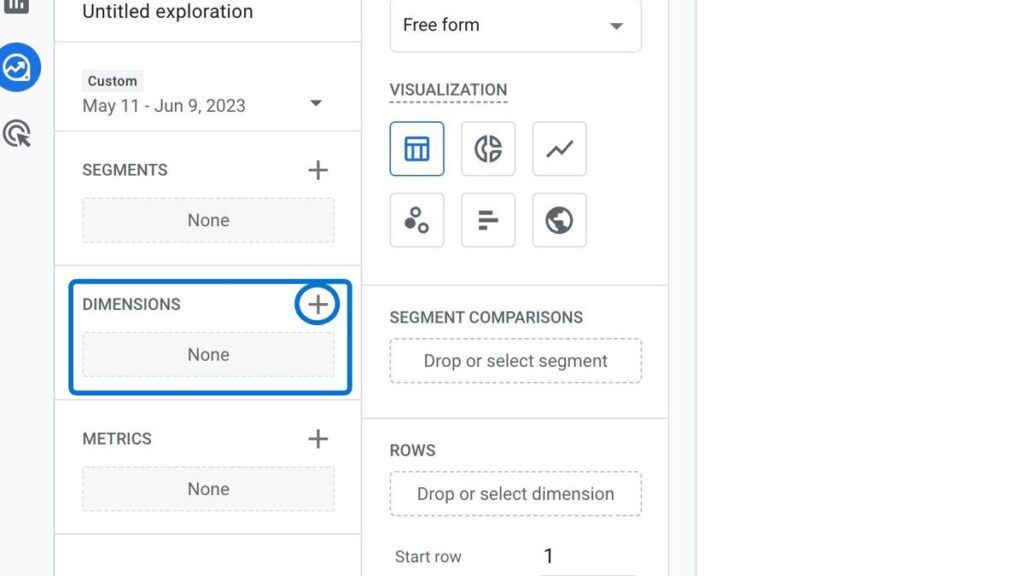
Follow these steps:
- Open Explore from the left navigation.
- Select Free form.
- Name your report AI Traffic Analysis.
- Import the following dimensions:
- Session source
- Session medium
- Session default channel group
- Landing page + query string
- Device category
- Country
- Import the following metrics:
- Sessions
- Total users
- Engaged sessions
- Engagement rate
- Key events
- Total revenue
- Add Session source as a row.
- Add Sessions and Engaged sessions as values.
- Apply a filter to include AI-related sources using your AI traffic regex.
You can now examine the traffic received from different AI platforms and compare their engagement.
Example report structure:
| AI Platform | Sessions | Engaged Sessions | Key Events |
|---|---|---|---|
| ChatGPT | 250 | 180 | 15 |
| Perplexity | 120 | 85 | 9 |
| Gemini | 90 | 60 | 6 |
| Copilot | 65 | 42 | 4 |
Illustrative figures only. Replace these values with actual GA4 data.
Step 6: Track AI Traffic Landing Pages
Knowing how many visitors arrive from AI platforms is useful, but understanding which pages they visit is equally important.
For example, ChatGPT may send visitors to your service pages, while Perplexity may send users to informational blog posts.
To examine this information:
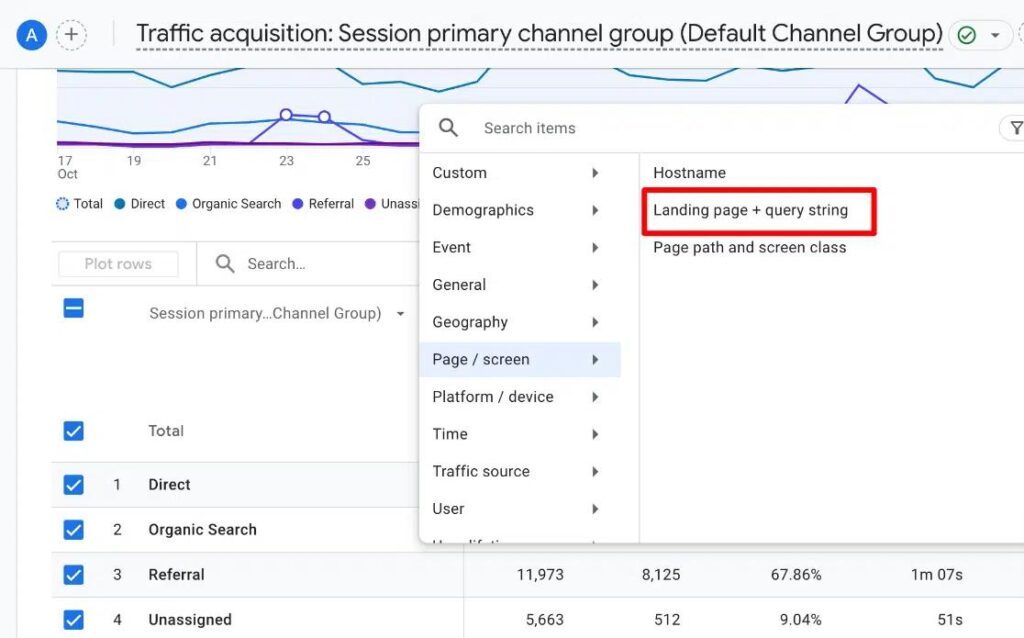
- Open Reports.
- Select Engagement.
- Click Landing page.
- Add a secondary dimension: Session source / medium.
- Filter the report for AI-related sources.
- Review which landing pages receive AI referral visits.
You can use this information to understand:
- Which blog posts attract AI referral traffic.
- Which service pages receive visits from ChatGPT.
- Which informational pages receive Perplexity referrals.
- Whether visitors from AI platforms enter through your homepage or internal pages.
This data can help prioritize content updates and identify pages that contribute to AI-driven website visits.
Step 7: Measure Engagement and Conversions From AI Traffic
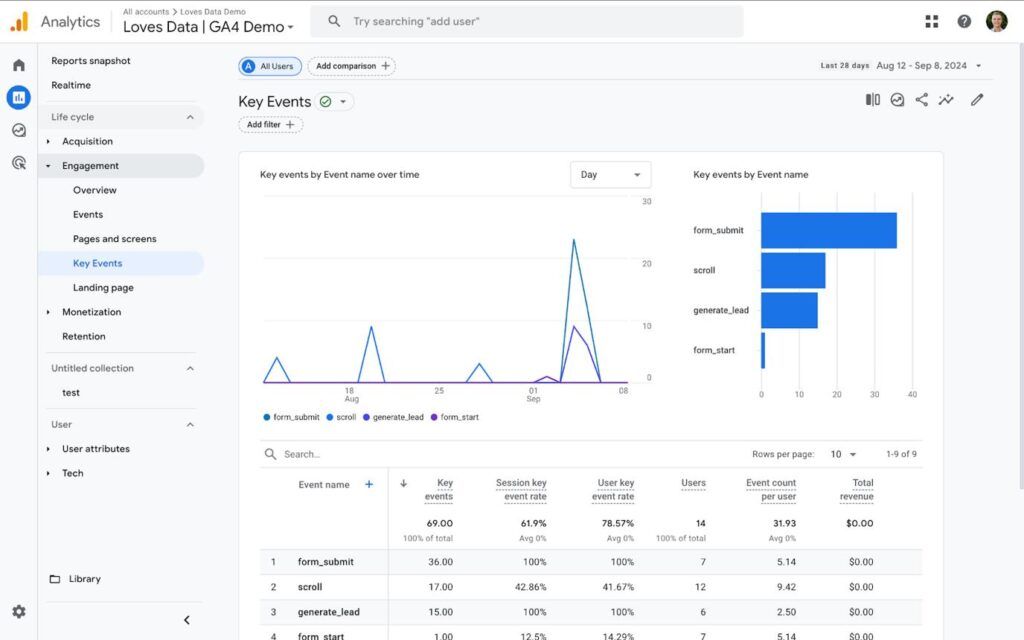
| Metric | What It Measures |
|---|---|
| Sessions | Visits received from AI platforms |
| Total users | Number of visitors |
| Engaged sessions | Sessions meeting GA4 engagement criteria |
| Engagement rate | Percentage of engaged sessions |
| Key events | Important actions completed by visitors |
| Total revenue | Revenue attributed to the sessions |
For example, if ChatGPT sends 200 visitors and 20 of them complete a lead form, you can evaluate its contribution to lead generation.
To measure these actions:
- Open Admin.
- Go to Data display.
- Select Events.
- Check whether important events, such as form submissions, purchases, and calls, are being collected.
- Mark relevant events as key events.
- Return to Traffic acquisition.
- Compare key events and revenue across AI traffic sources.
SEO reporting tip: Compare AI referral traffic with organic search traffic to understand how traditional search and AI platforms contribute to website engagement and conversions.
Important Limitations of Tracking AI Traffic in GA4
Although GA4 provides useful information about AI referral visits, it cannot capture every interaction between AI platforms and your website.
Keep these limitations in mind:
Direct Traffic Can Hide AI Visits
Some users receive a website recommendation from ChatGPT or Gemini but manually enter the URL into their browser. GA4 may record these visits as Direct traffic.
Not Every AI Platform Passes Referral Information
Some AI platforms, browsers, and applications may not pass identifiable referral information. As a result, GA4 cannot always identify the original AI source.
AI Overviews Are Different From AI Referrals
Clicks from Google’s AI Overviews and AI Mode are generally categorized under Organic Search rather than the AI Assistant channel. You cannot isolate all such clicks as a separate AI referral channel in GA4.
AI Mentions Do Not Always Generate Website Visits
An AI platform may mention your business or website in its answer without generating a click. GA4 cannot measure these mentions because no website visit takes place.
GA4 Does Not Track AI Crawlers as Website Visitors
When an AI crawler reads your website content, it does not necessarily execute your GA4 tracking code. You need server logs or other monitoring methods to investigate crawler activity.
GA4 vs. AI Visibility Tracking: What's the Difference?
| Measurement | Google Analytics 4 | AI Visibility Tools |
|---|---|---|
| AI referral sessions | Yes | Not their primary function |
| Website engagement | Yes | Usually no |
| Website conversions | Yes | Usually no |
| AI brand mentions | No | Yes |
| AI search citations | No | Yes |
| Competitor AI visibility | No | Yes |
| AI-generated website visits | Yes, when attributable | Depends on the platform |
For a complete SEO performance report, combine GA4 data with AI visibility monitoring and Google Search Console data.
Final Thoughts
Tracking AI traffic in Google Analytics 4 helps businesses understand how platforms such as ChatGPT, Gemini, Perplexity, and Microsoft Copilot contribute to website visits.
Start with the Traffic Acquisition report, examine individual referral sources, create a custom AI channel group where necessary, and monitor landing pages, engagement, and key events.
For a broader SEO strategy, SEO Yodha can help businesses assess organic search performance, AI visibility, technical SEO, and website traffic through data-driven SEO services.
Frequently Asked Questions
Yes. GA4 can identify visits from ChatGPT when referral information or campaign parameters are available. These visits may appear in the AI Assistant channel or under individual source/medium values.
Open Reports → Acquisition → Traffic acquisition and select Session source / medium. Search for perplexity to check the associated sessions.
Yes. You can check for gemini.google.com in the Session source / medium dimension and examine the associated sessions.
GA4 now includes a default AI Assistant channel for recognized AI assistant referrals. You can also create a custom channel group to include additional sources.
Yes. If your website tracks form submissions, calls, purchases, or other important actions as key events, you can compare those actions across AI traffic sources.
Not necessarily. Visits from AI assistants are generally categorized as AI Assistant or Referral traffic. Clicks from Google AI Overviews and AI Mode are generally included in Organic Search.
Want to know more about tracking AI traffic, improving website visibility, and measuring SEO performance? Contact SEO Yodha today for expert SEO Services and data-driven strategies to strengthen your online presence and grow your business.
- By Varun Kumar